 screenrove
How to give a coding agent useful UI screenshot references
Turn a screen you like into a clear implementation brief: choose the right screenshots, explain the interactions and make the boundaries explicit.
A screenshot tells an agent what a moment looks like. It does not explain how someone arrived there, which controls work, or what should happen next. A useful reference package fills those gaps without pretending the image contains a complete specification.
Start with one job
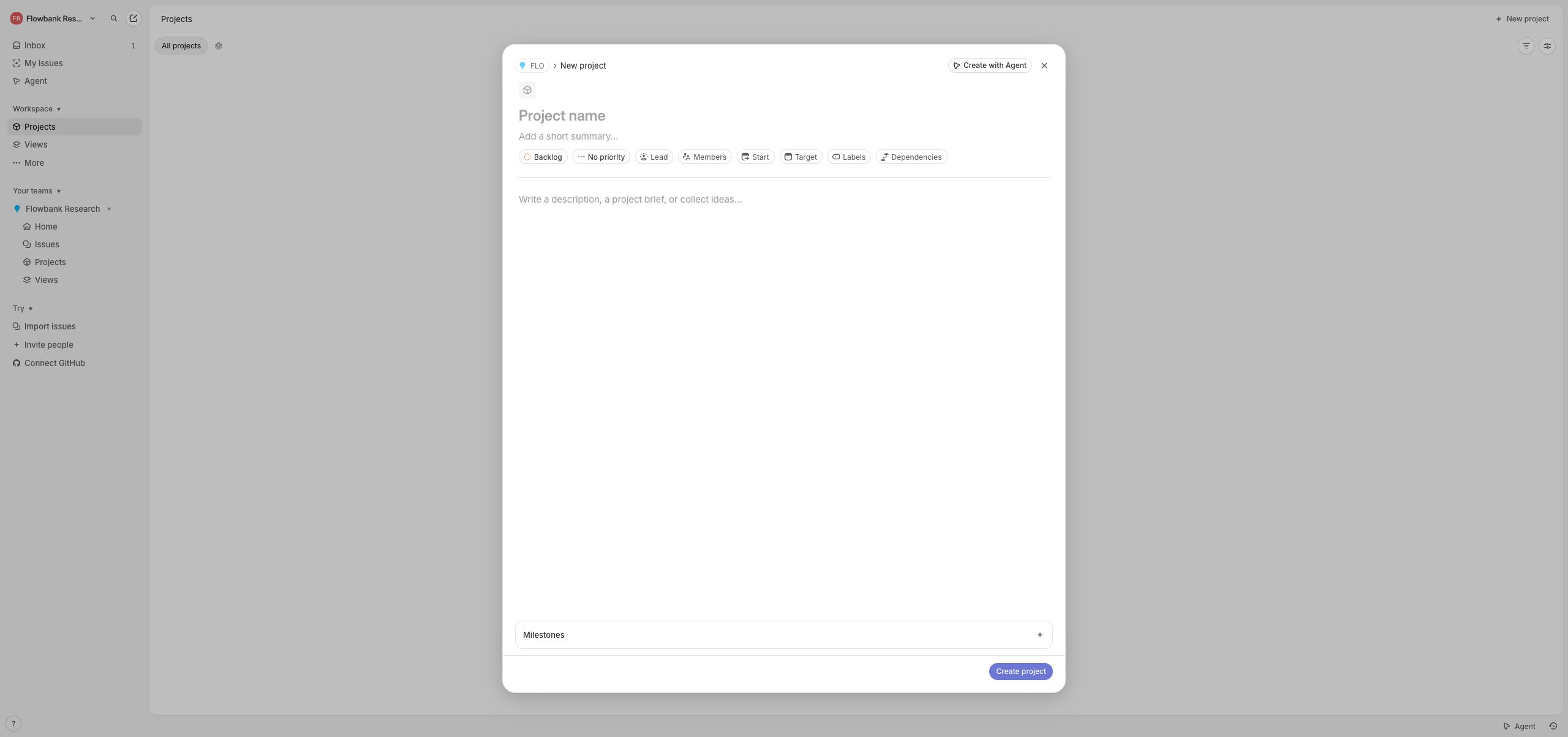
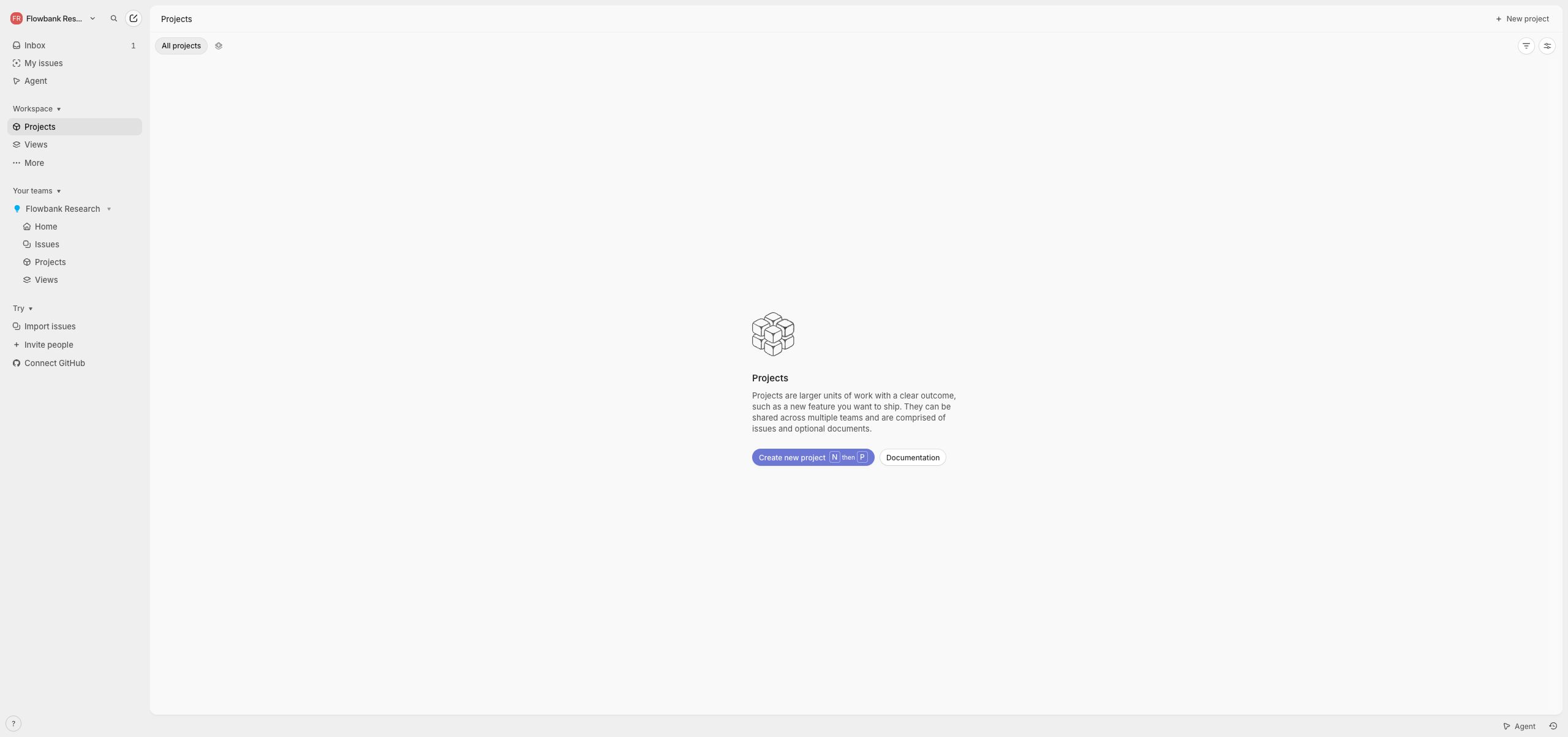
Choose the behavior you want to build before collecting images. “Create a project” is a useful scope. “Make my app look like Linear” leaves almost every important decision open. For a project creation feature, gather the projects list, the creation form and the state after the form closes. If you have not captured a successful submission, say so.
Our Linear new-project reference contains a composer opened in a research workspace. The form was not submitted. It is useful evidence for hierarchy and fields; it is not evidence of the complete project creation journey.
Pair each image with a short explanation
Give every screenshot a stable filename and a human-readable title. Under it, record the state, the primary action and the expected destination. Keep observations separate from requirements you are adding. For example, “the screenshot shows an empty project list” is an observation; “show a confirmation after saving” may be your proposed behavior.
Include the actual images
Pasting a Markdown image link does not attach an image. Some coding agents can fetch a public URL; others need a local file or an attachment. In Screenrove, open a reference and select “Use in agent”. The generated prompt includes screenshot URLs. For local access, download the prompt and screenshots ZIP, unzip it, and make that folder available to the agent.
Ask the agent to confirm which images it could inspect. If image access fails, fix that before asking for a faithful visual implementation. A confident description based only on a filename is not a visual review.
Explain what should change
References are most useful when you specify which decisions you want to preserve. You might keep a compact sidebar and a dense issue table while changing branding, terminology and the primary action. Include the existing stack and component conventions so the agent can work within your project.
Build a project creation flow in this repository.
Use the attached screenshots for layout and hierarchy.
Keep our existing colours, typography and terminology.
Inspect the current stack before choosing components.
The captured form was not submitted: propose and label
validation, saving, success and failure states.
Verify keyboard navigation and narrow-screen behavior.
Describe the states that screenshots miss
A desktop capture rarely documents loading, disabled controls, validation, retries or mobile behavior. Add these as implementation requirements instead of assuming they were present in the original product. State how back navigation should behave and whether entered values should be preserved.
Review behavior as well as appearance
After implementation, walk through the task. Can you enter data, recover from invalid input, dismiss the form and reopen it? Does the primary action produce a meaningful result? Then compare spacing, grouping and emphasis against the reference. A visually close screen with dead controls is still an incomplete feature.
Try this workflow with the Linear onboarding sequence or a single Vercel product screen. Keeping the first brief small makes it easier to see what the reference package is missing.