 screenrove
Detail page UI design: how 86 SaaS products show one thing
Detail page UI design data from 222 screens in 86 SaaS products: how tasks, records and docs open, and where fields, comments, tabs and AI go.
Most detail page UI design comes down to one decision: does the thing open on its own page, or on top of the list you came from? Across 222 detail screens from 86 SaaS products, 46% opened as a full page and the other 54% kept the list in view as a modal, split view or side panel. The split follows the object. Tasks almost never get their own page; listings almost always do.
We tagged every screen on the detail views wall with the object it shows (task, record, document, project, asset or listing), the container it opens in, and whether it carries a property list, comments or activity, tabs, and AI. Here is what one thing looks like when 86 teams each design it.
The numbers by object type
Each row counts screens, not products, so a product we captured several times weighs more. The project row is small (13 screens from 8 products); read it as a hint.
| Object | Screens (products) | Most common container | Property list | Comments / activity | Tabs | AI |
|---|---|---|---|---|---|---|
| Task / issue | 40 (12) | Modal, 14 of 40 | 68% | 65% | 20% | 30% |
| Record / contact | 55 (23) | Full page, 24 of 55 | 93% | 27% | 40% | 18% |
| Document / page | 35 (16) | Full page, 16 of 35 | 20% | 17% | 20% | 23% |
| Project | 13 (8) | Full page, 11 of 13 | 38% | 0% | 77% | 8% |
| Media / asset | 20 (12) | Full page, 8 of 20 | 50% | 0% | 15% | 30% |
| Listing / item | 23 (17) | Full page, 16 of 23 | 26% | 9% | 30% | 0% |
| All screens | 222 (86) | Full page, 102 of 222 | 52% | 24% | 31% | 18% |
The "All screens" row includes 36 screens that fit none of the six types, such as test runs, palettes and profiles.
Three patterns stand out. Tasks are the only object where conversation is the norm: 26 of 40 task screens show comments or activity, against 0 of 20 asset screens and 0 of 13 project screens. Records are defined by their fields, with a property list on 51 of 55. And projects lean on tabs (10 of 13), because a project is a container of other things and tabs are how you get to them.
Container: the list stays in view for tasks
Only 6 of 40 task screens were full pages. The rest split between modals (14), split views (10) and side panels (10). People triage tasks in batches, so the detail opens over the board and closes back to it. Listings go the other way: 16 of 23 template, marketplace and app-store items were full pages, the other 7 modals, and none were split or side panels. A listing is a destination you share, not a row you work through.
The container is also not one fixed choice per product. 21 of the 86 products appear in more than one container on this wall. Plane opens the same item, SR-1, as a side-panel peek over the board and as a full page with an expand icon between them. Jira does the same for its work items, with a modal and a full page that keeps the same Details panel.

Property panels: six ways to show the same fields
A property list appears on 116 of 222 screens (52%), from 57 of the 86 products. What changes from product to product is the density and the shape.
- Bordered tiles. Shortcut boxes each field with an icon: Team, Workflow, State, Epic, Type, Requester, Owner, Estimate.
- Inline row. Plane puts state, priority, assignee and two dates in one line under the title, then tucks Parent, Labels, Cycle and Modules into a rail.
- A long labelled panel. Jira's bordered Details panel holds 10 fields, Assignee to Reporter, with Development and Automation collapsed beneath.
- Collapsible groups. Neon's branch overview stacks four groups (Branch, Project, Usage, Postgres) in a right column.
- Chips. Upstash fits key metadata into four chips above the value.
- Plain label/value rows. Mixpanel's event panel lists 10 rows, Name to Image; "897 Reports" is the only value styled as a link.
The deciding factor is how much of the object is its fields. A Redis key is mostly its value, so Upstash spends four chips. A Jira story is mostly its fields, so Jira spends a whole panel.


Comments, activity and tabs that count
Comments or an activity log show up on 53 screens (24%) from 24 products, and mostly on tasks. Where they do appear, the better ones let you filter the stream rather than scroll it. Plane offers six filters (All, Activity, Comments, Updates, Transition, History); Jira's work item has four (All, Comments, History, Work log); Shortcut's Story Activity was showing "Important Changes Only".

Tabs appear on 69 screens (31%). The useful detail is a count in the label. folk shows "Team interactions 0", "Notes 0" and "Tasks 0". monday's item panel reads "Updates / 1" once an update is posted. Shortcut's iteration page carries "Docs 0" and "Stories 6", and Sentry's issue shows "Events 1" and "Replays 0". A count turns a tab from a guess into a signpost. Compare PostHog's feature flag, which runs nine tabs from Overview to "Testing NEW" with no counts, so every tab has to be opened to learn whether it holds anything.

AI on the detail page
39 screens (18%) carry an AI control, from 17 of the 86 products. It clusters on tasks and assets (30% each) and is absent from all 23 listing screens. The placements fall into three groups:
- A button next to status. Jira's "Improve Story" sits in the action row beside "In Progress". PostHog ends a saved insight with a "PostHog AI" block and one "Explain this insight" button. Sentry's issue rail has a Seer Autofix card listing what it can do (root cause, a proposed solution, a code fix) above "Set Up Seer".
- AI as a field. Fibery puts "Short summary" and "Summarize" buttons inside the field list, right next to the summary they fill. OpusClip makes the AI output the headline property: a 99/100 score graded on Hook, Flow, Value and Trend.
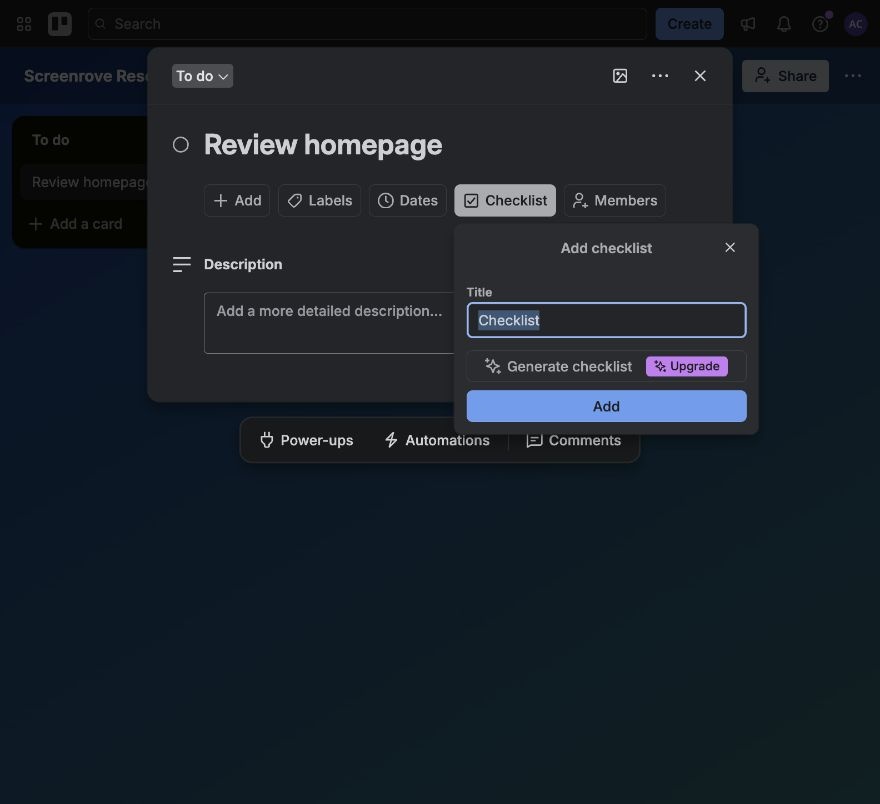
- AI inside an empty state or action. Wrike's empty description reads "Add a description or write with AI". Trello hides "Generate checklist" in the checklist popover.
The quietest version is often the most usable one. Wrike and Trello attach AI to the moment a field is empty, which is exactly when someone might want help filling it.
How we counted
We captured these screens in desktop browsers with research accounts between September and October 2026. A vision model recorded each screen's object type, container and the four yes/no attributes, and every tag can be checked on the screen's own page. Counts are per screen, and four unclassified screens are left out of the 222. Error and not-found pages captured on the same products are excluded. We record what we saw, not how any layout performs; nothing here is an A/B result.
What to steal
- Pick the container by object. Tasks and records worked through in batches open over the list (modal, split or side panel); shareable listings and projects get a full page. Offer an expand control between the two, like Plane and Jira.
- Promote the top five fields. Put the fields people change most in a row or a tile group near the title, and leave the rest in a labelled panel. Show empty fields as prompts, not blanks.
- Size the property panel to the object. If the value is the point (a key, an image, a clip), use chips; if the fields are the point, use a full panel with groups.
- Put counts in tab labels. "Notes 0" saves a click; "Updates / 1" tells you something changed.
- Let people filter activity. Comments and history in one stream need a filter, and a sensible default like "Important Changes Only".
- Attach AI to an empty field or an existing action rather than adding another panel, and say what it does in the label.
Browse task details with activity, record property panels or every detail view with AI. Building one now? Connect the Screenrove MCP server and ask your agent for "task detail side panels with comments and AI" to pull these references straight into your editor.