 screenrove
OAuth connect screen UX: what 15 real asks put above the button
OAuth connect screen UX from 15 real asks: Linear's benefit rows, Sentry's 'We will never' list, Twenty's second ask, Git rows from Netlify, Render and Vercel.
Only 3 of the 15 account-connect screens in our integration library say anything about what happens to your data once you click, and they are the three asking for the most: Sentry wants your code, Twenty wants your inbox and calendar, folk wants your contacts. The rest of the OAuth connect screen UX we captured leans on something else to earn the click: a short list of what you get, a softer way out, or a primary button that stays grey until you link something.
We pulled every screen in the integration pages library where a product asks you to link an outside account (a Git host, Slack, a calendar, an email or contacts provider) and compared what sits above, beside and below the button. Fifteen screens from 12 products qualified.
Benefit rows above the button
Six of the 15 screens itemise what the connection does before asking for it, rather than relying on the headline alone. Linear is the cleanest version. Its GitHub step is a headline, one line of subcopy, three ruled rows and then two buttons: "Code reviews", "Automate issues" and "Code context for Linear AI", each with a single grey line of explanation such as "Auto-assign issues and update status from PR activity".
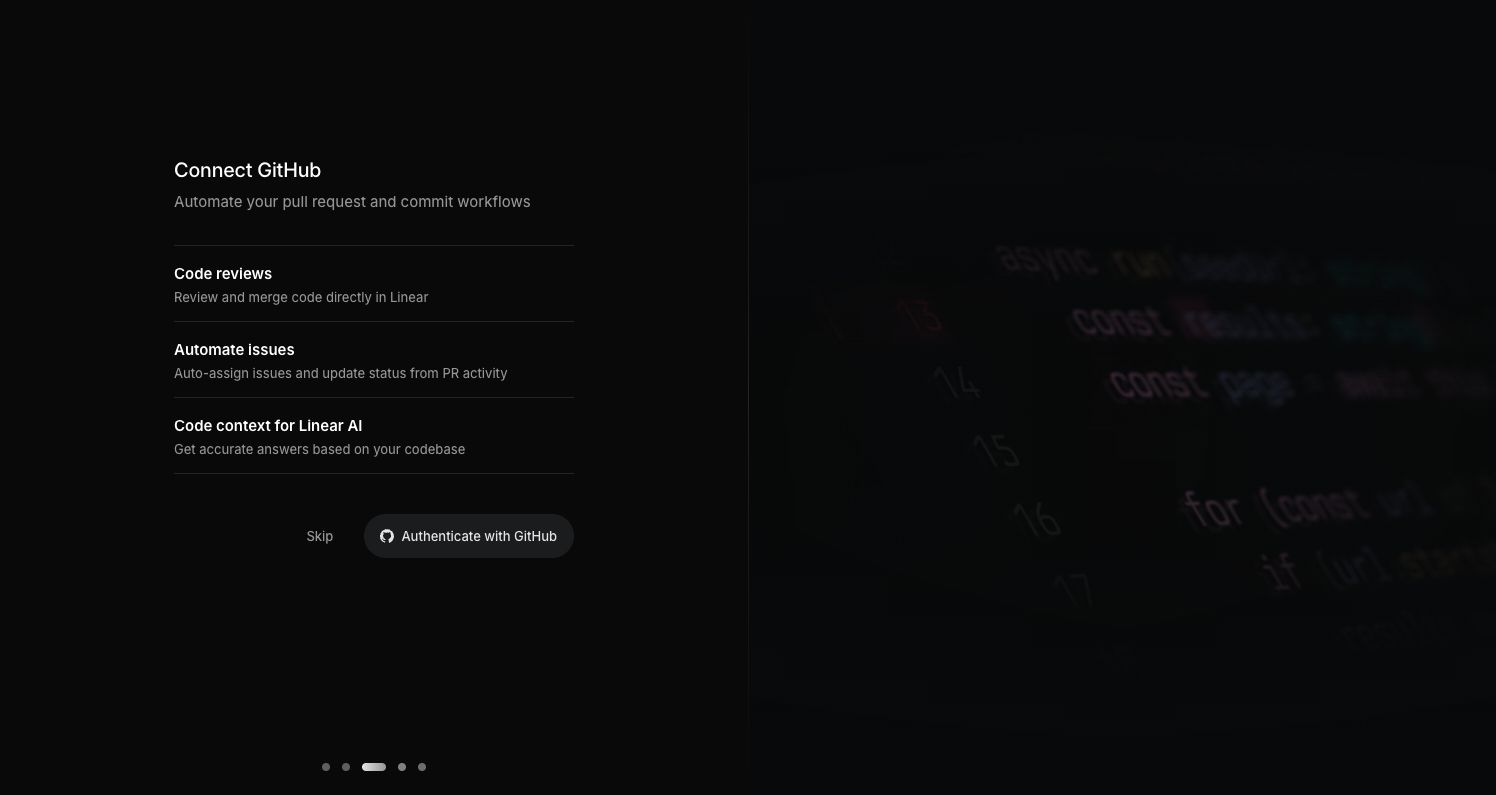
The Slack step repeats the exact layout with "Create issues from Slack", "Issue notifications" and "Personal notifications", and a blurred Slack thread on the right showing "@Linear create issues and assign to me". One detail worth noticing: on the GitHub step "Skip" is bare text, while on the Slack step it is a filled pill nearly as prominent as the main button. Same flow, different weight for the way out.
Others compress the idea. Any.do puts three ticked lines ("Schedule your personal and workspace tasks", "Easily create, edit and delete events") above three identical blue buttons for Google, Outlook and iCloud, and its subtitle is the only one in the set that prepares you for the consent screen itself: "Please approve all permissions to connect your calendar". Toggl writes the payoff into each provider row: "Import your meetings so they turn into tracked time".
Trust copy: say what you will not do
The strongest trust block in the set is Sentry's. Under the Git buttons sits a lock icon and "Revoke access any time in settings", then a grey box with two columns. Left: "How we use repository access:" with four ticks (Source code context, Commit attribution, Issue auto assignment, AI debugging with Seer). Right: "We will never:" with three crosses.

A negative list names specific fears and rules them out, which a badge cannot. Notice, too, that the primary "Continue" sits in a pale lavender while "Continue without a repo" is set in full-strength black text beside it.
Twenty takes the compliance route: SOC2 and GDPR pills above a mock CRM table, with "Only you will be able to see your emails and events" in small type at its foot, and "Takes only 30 seconds" in the subcopy. folk folds trust into its benefit list, so two of its three rows are reassurance: "folk will keep your contacts private by default" and "folk is secure, GDPR-compliant, and SOC II certified".
Outside our 15 (it is a database connection, not an account), Appsmith runs a dismissible banner across its datasource page: "When connecting datasources, your passwords are AES-256 encrypted and we never store any of your data."
How the way out is written
Nine of the 15 screens carry a labelled way to move on without connecting. Five use the plain word "Skip" (both Linear steps, Twenty, Todoist, Evernote). The other four say more: Sentry's "Continue without a repo" and "Set up later", Twenty's "Skip anyway", and folk's decline link.

Sentry's alerts step uses its subcopy to remove the cost of skipping instead: "Email alerts stay on even if you skip. You can change this anytime." It tells you what you keep. PostHog does the same on its data step: "You can always connect more sources later."
Twenty is the only product in the set that asks twice. Clicking Skip on its import step opens a modal, "Start with your whole network", that repeats both connect buttons, each with a "+1" credit chip, above a plain "Skip anyway". The credit is explained on the first screen's tooltip: "Connect your mailbox to earn 1 free credit", worth "24 AI actions, 10 enrichments or 1 hour of call recording".

Two products avoid the skip question by defaulting. Toggl has no skip label at all: Continue is live without a connection, and "Auto-track calendar events" is already toggled on, ready for whichever calendar you link. Evernote preselects Google Calendar as a radio card and offers its own "Evernote calendar: Use the default integrated calendar" as the third option.
Git provider rows and the locked primary button
Four products in the set ask for a Git host. All four lead with GitHub then GitLab; the row length is where they differ.
| Product | Buttons | Providers, in order |
|---|---|---|
| Netlify | 5 | GitHub, GitLab, Cursor Origin, Bitbucket, Azure DevOps |
| Render | 4 | GitHub, GitLab, Bitbucket, Cursor Origin |
| Sentry | 3 + More | GitHub, GitLab, Bitbucket |
| Vercel | 3 | GitHub, GitLab, Bitbucket |
Cursor Origin appears in two of the four rows, Netlify and Render, which places it beside long-standing hosts on the first screen a new project sees. Both also make OAuth optional. Netlify puts the Git row under a "Bringing your own code?" divider, below an AI agent prompt and above a drag-and-drop upload. Render sets a segmented control above its buttons: Git Provider, Public Git Repository, Existing Image.

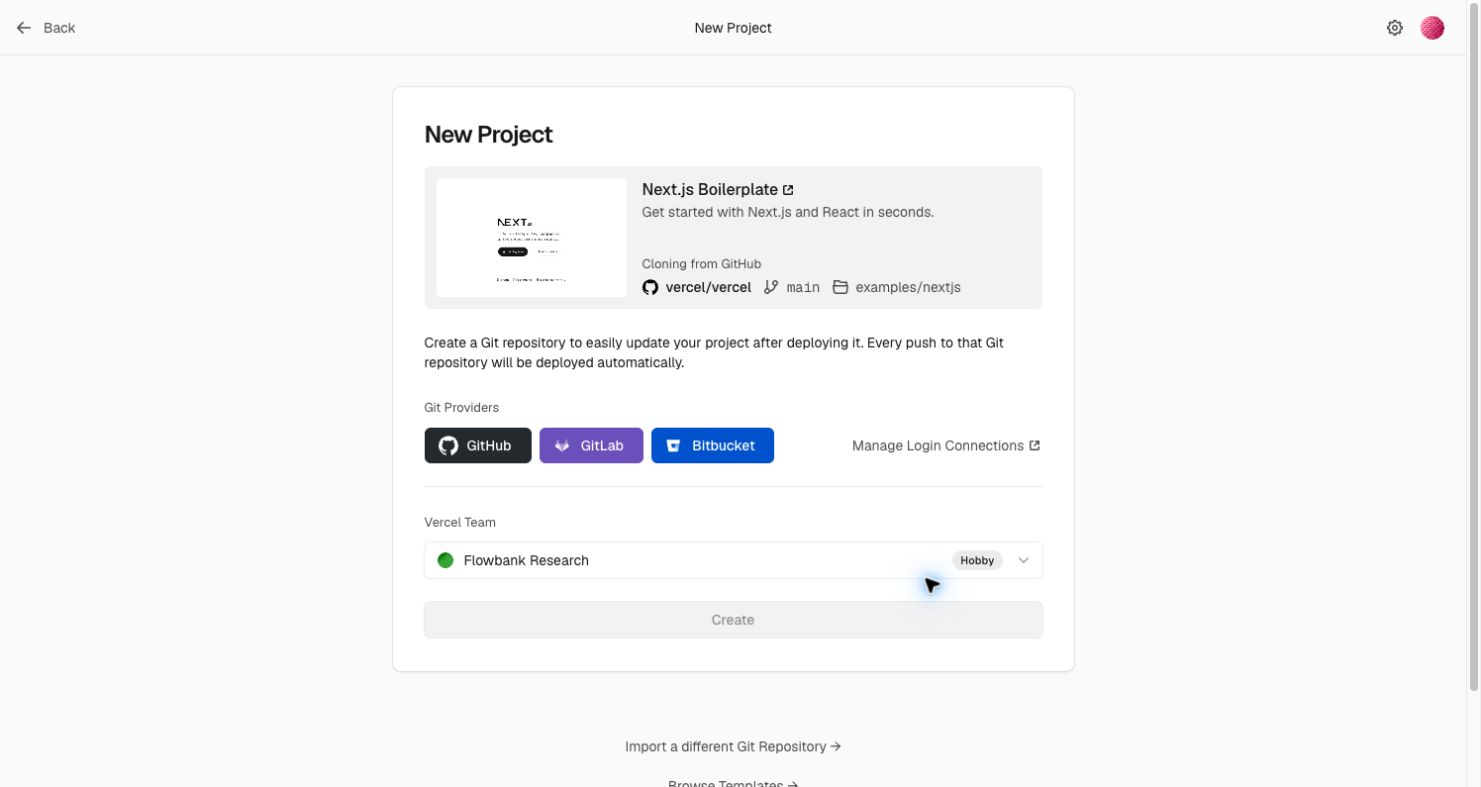
Vercel takes the opposite stance on its template screen. "Cloning from GitHub" names the source repo, branch and folder, the copy explains that "Every push to that Git repository will be deployed automatically", and the full-width Create button stays grey until a provider is linked.
Canny's Autopilot setup does the same with 23 equal source buttons and a greyed Continue in the corner.
Show the options you cannot take
One pattern from just outside the connect step is worth borrowing. Descript's export destination menu keeps podcast hosts that cannot take the current export (Buzzsprout, Captivate, Castos and Transistor, four of the eight visible) in the list, greyed, each with an info icon. Hiding them would leave users wondering whether their host is supported; greying them answers that.
What to steal for your own OAuth connect screen UX
- Put two or three benefit rows above the button. A noun and one line each, as Linear does. Write the payoff as the thing the user will see afterwards, not the permission you need.
- Answer the fear with a "never" list. If you are asking for code, mail or contacts, name what you will not do, as Sentry does, and add one line on how to revoke.
- Say what survives a skip. "Email alerts stay on even if you skip" removes the cost of saying no; "You can always connect more sources later" removes the pressure.
- Make the button name the provider and the verb. "Authenticate with GitHub", "Connect Google Calendar", "Continue with Microsoft". Warn people about the consent screen if you need every permission, as Any.do does.
- Offer both Google and Microsoft for mail and calendar. All six calendar and contacts asks in our set do; only Twenty lists Microsoft first.
- Only lock the primary button when the connection is the product. Vercel can grey out Create because there is nothing to deploy without a repo. Netlify and Render show the alternative: keep upload or public-URL paths beside the Git row.
- If you ask twice, pay for it. Twenty's second ask works as a pattern because it adds something new, a credit, and leaves "Skip anyway" in plain sight.
How we counted
The integration pages wall holds 83 screens from 48 products, captured in desktop browsers with research accounts in September and October 2026. A vision model recorded each screen's attributes, which you can check on each screen's page; 33 screens from 26 products are tagged as connect or authorise views, 28 of them inside signup and task flows. For this piece we narrowed those to the 15 that ask you to link an outside account (Git host, chat, calendar, email or contacts), leaving out database pickers, MCP setup screens and export menus, and we read every screen by eye. These are what we saw on the day, not A/B test results, so we make no claim about which version converts better.
Building your own connect step? Connect the Screenrove MCP server and ask your agent for "connect screens with trust copy" or "Git provider rows" to pull these references straight into your editor.