 screenrove
Passwordless login UX: the password field is disappearing
Only 28 of 118 sign-up and log-in screens we captured ask for a password. Passwordless login UX in practice: email-first, magic links, Google and zero passkeys.
Only 28 of the 118 sign-up and log-in screens on our login pages wall show a password field. Sixty-four open with an email field and nothing else, 22 show no text field at all, and across 104 products not one offers a passkey. This is passwordless login UX as it actually ships: the password has not been replaced by something new so much as pushed to a second screen, a text link or nowhere.
We went through every screen to see what replaced it: email-first forms, buttons-only pages, magic links, a Google button styled as the default, and enterprise SSO in a range of places.
The numbers
| What the first screen asks for | Screens | Share of 118 |
|---|---|---|
| Email only, password later or never | 64 | 54% |
| Email and password together | 28 | 24% |
| No email field (buttons, gates, a name field) | 26 | 22% |
| Enterprise SSO entry point | 21 | 18% |
| Passkey option | 0 | 0% |
The split holds when you look only at sign-up screens: 24 of 86 sign-up screens ask for a password up front, 43 ask for email alone. The sharper number is on the 24 combined screens that serve log-in and sign-up from one form: none of them shows a password field.
Email first, everything else later
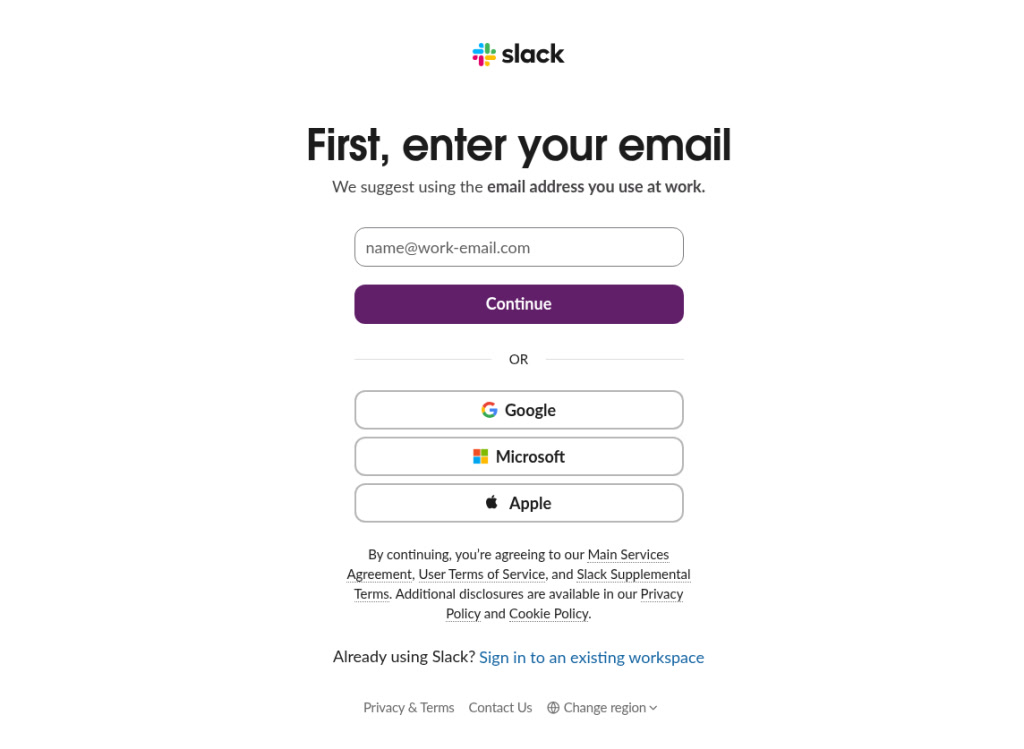
Slack is the cleanest example. The heading is the instruction, set huge across two lines: "First of all, enter your email address". The subline adds "We suggest using the email address that you use at work," and Google and Apple are squeezed into half-width buttons under an OR. There is one field and one decision.
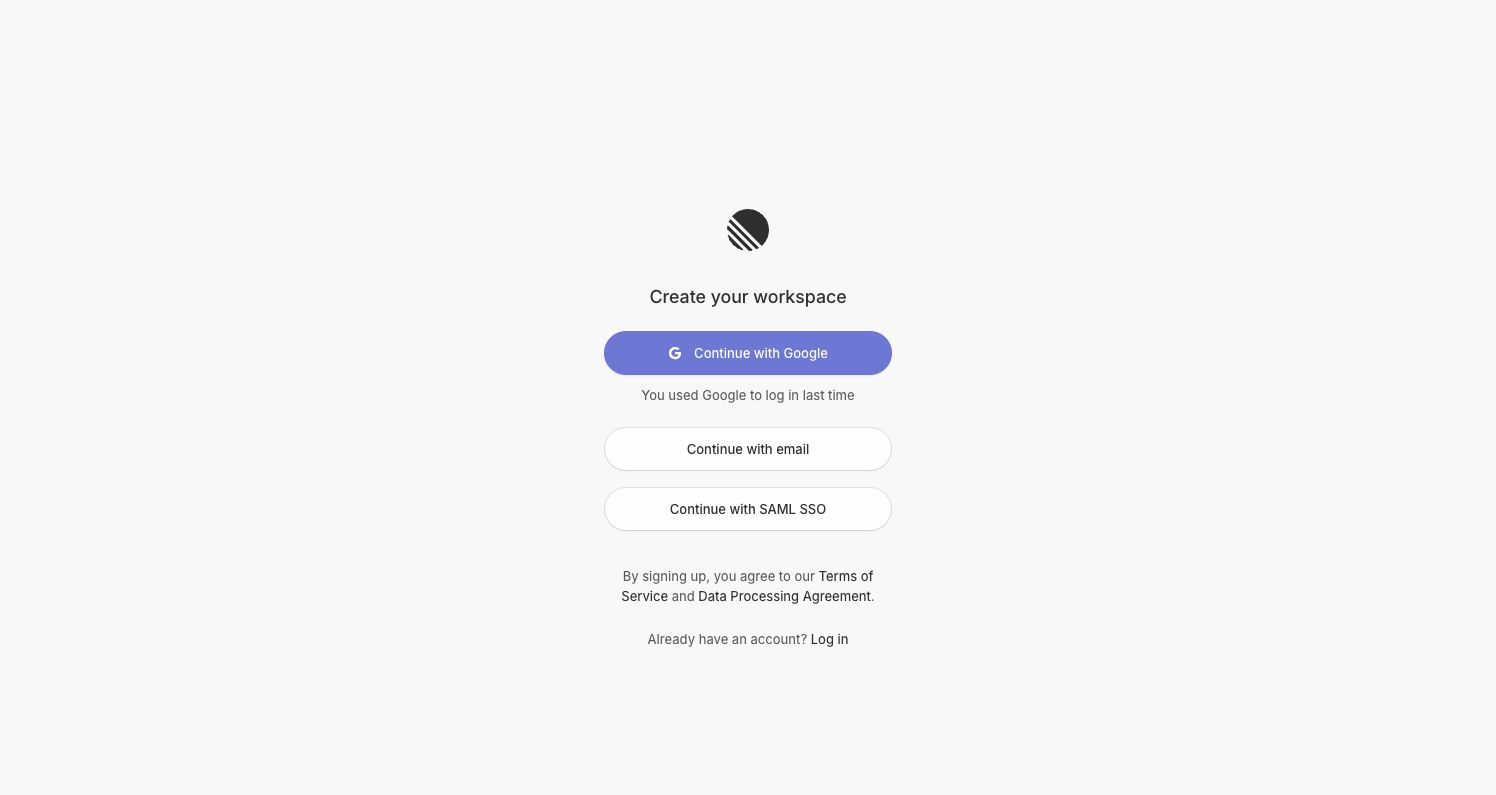
The email-first form also removes the "log in or sign up?" question. Jitter replaces its heading with a sentence that explains the combined flow: "We'll sign you in, or create an account if you don't have one yet." Linear's email step strips down to "What’s your email address?" and one field. When a password does appear, it often waits for step two: on Evernote's second screen the Google and Apple buttons disappear and a focused Password field takes their place.
No text fields at all
On 22 screens the first view has no input of any kind, only buttons. VEED has no headline either: the wordmark, a black "Google" pill and light grey Apple, Microsoft and "Work Email". Twenty gives charcoal buttons to Google and Microsoft and a pale outlined "Continue with Email" under a hairline. Sanity stacks Google, GitHub and "Continue with email" as three equal grey buttons.

Buttons-only pages tend to demote email further. Netlify and Mermaid Chart turn it into a text link below the provider buttons, and Glasp and Product Hunt offer no email route at all on the screen we captured.
Google is the button they want you to press
Every one of the 104 products shows a Google button on at least one captured screen; the 7 screens without it are second steps, error states or pre-auth gates. What is more telling is styling. Several teams fill the Google button and leave every other option outlined: Deepnote (the only blue button of four, above a work-email field), Gamma (a royal-blue pill over a lone Email field), folk (a black pill above an outlined "Continue with email") and Linear.
Ideogram attaches a price to the choice. The divider reads "Or continue with email*", and the footnote explains: "*Email accounts don't include free credits — you'll need a paid plan to generate. Sign up with Google or Apple to get free credits." It is the most direct statement in the set that a product prefers social sign-in. The page doesn't give a reason, but free-tier abuse is the obvious candidate: a Google or Apple account is harder to mass-produce than an email address.

Magic links: say what happens after Continue
27 of the 64 email-first screens label their main button simply "Continue", and on most of the ones we checked nothing says whether the next step is a password, a code or a link. A few spell it out. Superhuman Docs (Coda, mid-rebrand: the page shows the Coda icon handing off to Superhuman's) puts a note under its Continue button: "We'll email you a link for a password-free sign up. Or sign up with a password." Ideogram labels its email button "Send verification link" and offers "Sign in with password" beneath it. Descript's email button reads "Continue with email", with "Use a password instead" as plain text below.
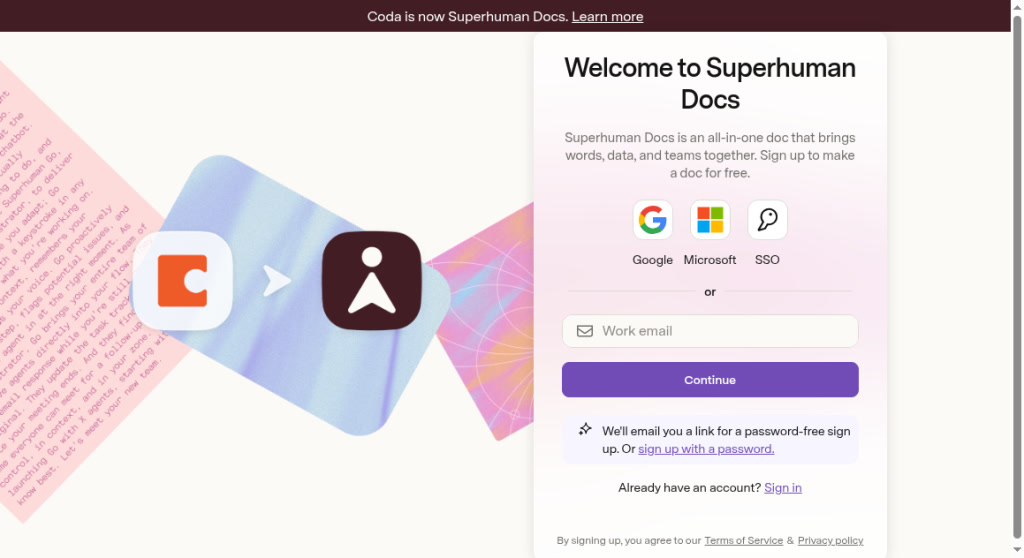
That pattern, link by default and password as the escape hatch, inverts the old layout where "Forgot password?" was the only email-based route. It also tells the user to keep their inbox open, which matters: a magic link that arrives while someone is staring at a blank "Continue" page looks like a broken form.
Zero passkeys
Not one of the 118 screens, from 104 products, shows a passkey button, a "Sign in with passkey" link or passkey copy. That includes developer tools, design tools and AI products that adopt most new conventions quickly. One caveat: browsers can offer a saved passkey through autofill when you focus an email field, and a screenshot of a fresh research account would not show that. But as a visible, first-screen choice, passkeys are absent. The email-first layout that most of these products already use is exactly where a passkey prompt fits, so this is an open gap rather than a design constraint.
Enterprise SSO: button, tile, link or upsell
21 products put an enterprise SSO entry point on the first screen, and placement varies. Linear ("Continue with SAML SSO"), Deepnote ("Continue with SSO"), Ideogram, Bolt ("Sign up with SSO") and Cap ("Login with SAML SSO", the same grey pill as Google) give it a full-width button. Descript puts "Use single sign-on" directly under Google, above the email field. Superhuman Docs makes it a third icon tile beside Google and Microsoft. Gamma ("Continue with Single Sign On (SSO)") and Bubble ("Login or SSO") use text links, and CodeSandbox places "Sign in with SSO" alone near the footer.
Lovable does something different: there is no SSO button at all, only a padlock line under the form, "SSO available on Business and Enterprise plans". The sign-up page doubles as a pricing signal for the buyer who will need SSO later.
Where passwords survive, the rules move into the field
Of the 28 screens that still ask for a password, several put the rule in the placeholder so nobody has to fail first. TickTick: "Password: 6-64 characters". UXPin: "At least 8 characters required". Whimsical: "12 - 64 characters". Bubble lists four rules as empty radio dots before you type: at least 8 characters, 1 number, 1 uppercase letter, 1 special character.
Render teaches by example instead. Its password placeholder reads "correct horse battery staple", the passphrase from the xkcd comic arguing that four random words beat a short string of symbols. It is a joke for developers and a hint at the same time.

Placeholders disappear on the first keystroke, so a rule that only lives there is gone exactly when someone needs it. Bubble's checklist stays visible; that is the safer version.
How we counted
We captured these screens in desktop browsers with research accounts between September and October 2026. A vision model recorded each screen's attributes (email first, email and password, passkey, SSO, Google), and every value is checkable on the screen's own page; we re-read the screens quoted here by eye. Counts are per screenshot, and a few products contribute more than one step. We record what the screen showed, not what happens after Continue or what converts better: we have no A/B results, and a passkey offered only through browser autofill would not appear.
What to steal for passwordless login UX
- Open with one email field. Ask for a password on step two or not at all, as Slack and Evernote do, and let the same form handle log-in and sign-up (Jitter).
- Say what Continue does. One line like Superhuman Docs' "We'll email you a link for a password-free sign up" prevents the dead-end feeling of a magic link.
- Keep the password as an explicit escape hatch. Descript's "Use a password instead" and Ideogram's "Sign in with password" serve people without inbox access.
- If you prefer Google, style it, and say why if there is a reason. Deepnote and folk fill one button; Ideogram explains the credit rule in a footnote.
- Give B2B buyers a visible SSO route. A full button (Linear, Cap) or, if it is a paid feature, Lovable's one-line plan note.
- Add a passkey option. None of the 104 products in our set shows one, so it is still a way to stand out.
- If you keep passwords, show the rule before typing, as a persistent checklist (Bubble) or a memorable example (Render).
Browse the full email-first screens or the SSO set on the wall. Building one now? Connect the Screenrove MCP server and ask your agent for email-first sign-up screens with SSO to use as references.